Overview
Trello is the flexible work management tool where teams can collaborate on projects, organize workflows, and track progress in a visual and productive way. Trello provides us a workspace where we manage all our tasks with our teams. Each person has their own list of tasks in the Trello board and these tasks and campaigns are represented by cards in a person’s list. Here’s the documentation provided by Trello itself.
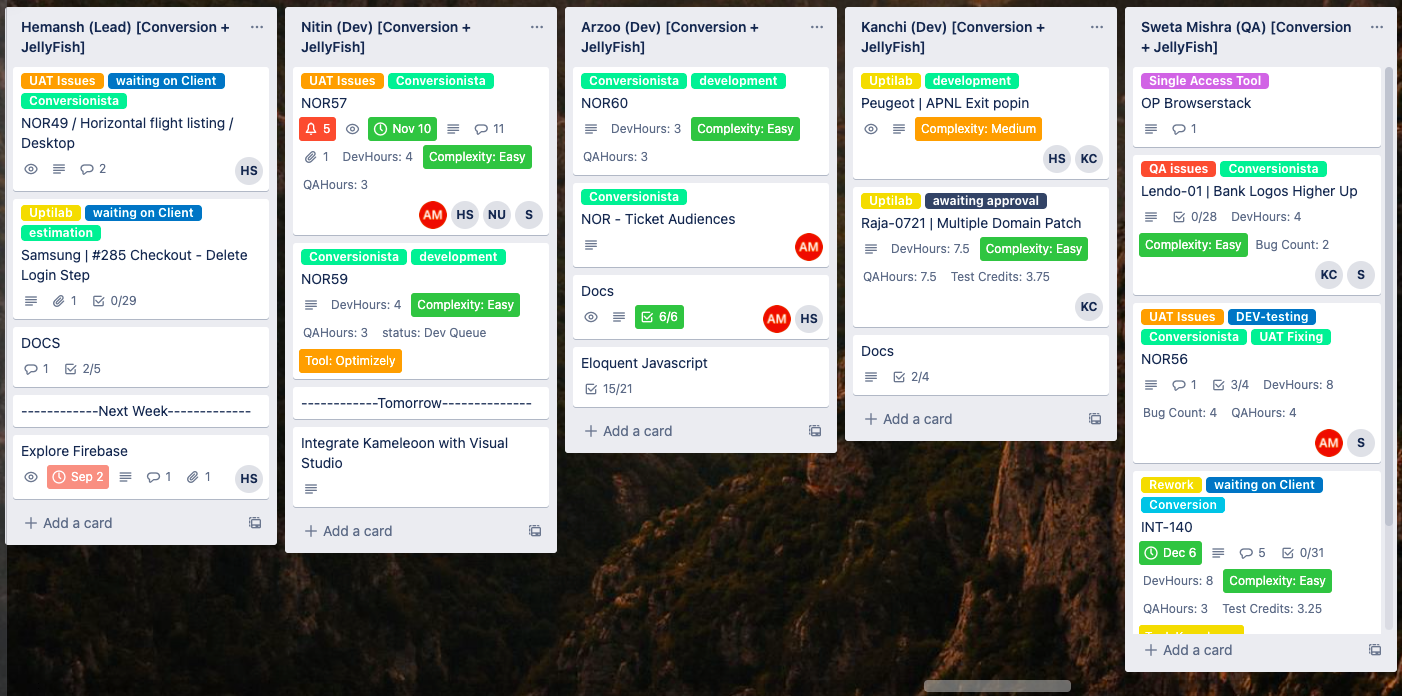
Here’s an example of how the cards would be managed in our Trello board:
Example of the flow
Our OptiPhoenix trello board is divided into various teams like internal team, Jellyfish team, AWA team, etc depending on the clients they work with. A new campaign will have a new card created using the respective templates in the start of our Trello board and will be assigned to one of the developers of the respective team the campaign belongs to by the team lead. The assigned developer takes the briefing from the team lead or directly from the client, understands the requirements of the campaign, and checks the feasibilty of the same. If feasible, the developer would provide an estimate of the total effort required behind the development and inform the team lead. The QA of the team would provide the QA effort for the same task to the team lead as well, and the total of the both will be passed down to client as an initial estimate for the campaign. After getting the approval of the credits, the developer can now work on the campaign. Once the campaign is developed, the developer passes it to the QA for the testing purposes. Any bugs found during testing are compiled in a Testing spreadsheet by QA and passed to the developer afterwards to fix on priority. The developer and QA cycle repeats till all the bugs have been fixed and campaign is ready to be delivered to the client. The QA will either inform the client when the campaign is ready or will pass the card in Trello board to the list of the person who needs to inform the client. Once the campaign is delivered successfully, the card is to be moved to the list “Awaitng Client Feedback” at the end of the Trello board.
Any and all Reworks (not part of original requirement) are treated as new campaigns and follow the same flow from start to end, but may use the same card with just a rework label attached to them.
Our Lists
Everyone at OptiPhoenix has their own list in the OptiPhoenix Trello board, which represents the queue of tasks the person is supposed to work on. The OptiPhoenix Trello board has the list of templates at the start followed by all the CROs and their list. After these, the lists of developers and QA’s who are part of the same team are grouped together. At the end of the board, we have lists named as single access tool and completed list that are commonly used by everyone in the organization.
Below I am attaching an image that has team Jellyfish and Conversion members in it and they also have various cards in their list as well. There are various teams divided among us and each of the people is associated with a particular team and they do the campaign under their team. For example, we have a Conversion and Jellyfish team in which the developers and QA are assigned to do all the campaigns that come under Conversion or Jellyfish. Similarly we have a New Republique team in which also there are developers and QAs who do the tasks of the New Republique. Other teams include AWA, Widerfunnel, Internal team, etc. Each person is assigned a particular team and its mentioned alongside their name on top of their list which team they are associated with.
Our Cards
Cards are kind of tickets that are raised whenever a new task or campaign comes up. The cards are usually made with templates present on the board but can also be made without templates by simply clicking on plus sign in any list. As suggested earlier, the card signifies the work that is supposed to be the done by the person in who’s list the card currently is. The order of cards in our list represents the priority on which the cards are supposed to be worked upon. The top-most cards have higher priority and should be done first before the lower ones. The priority of campaigns and tasks should be discussed with the team lead and assigned accordingly.
How to create a card
As suggested above, blank cards can be created and added to a list by clicking the “+ Add a card” button at the bottom of the list. However, rather than creating blank cards, it is better to create new cards from their respective templates that we have built previously. We will read more about what their is inside the template, but for now know that these templates can be found in the first list at the start of our OptiPhoenix Trello board. The template is different for different tasks and we have to select a template according to the team task for which the card is created. For example we will create a Jellyfish campaign card using the Jellyfish template, Conversion campaign using the Conversion template, etc.
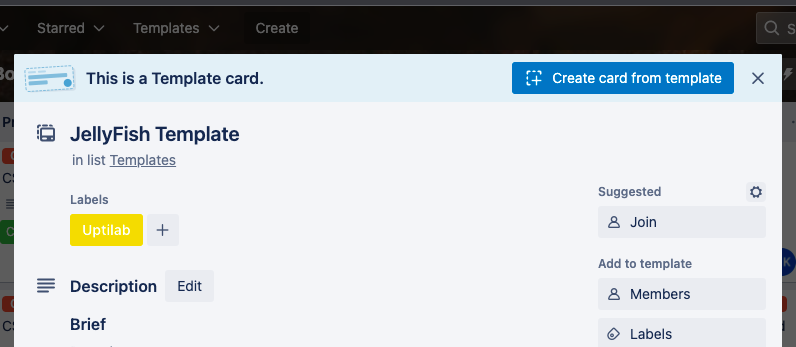
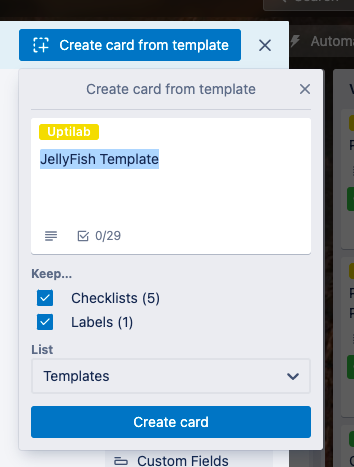
To create using template, follow these steps:
- Open the correct template.
- At the top of the template popup, click on the “Create card from template” CTA.
- Add the name of the campaign/task in the textbox provided.
- For now, make sure the checklists and labels are checked.
- Select the list in which you want to add this new card.
- Click on “Create card”.
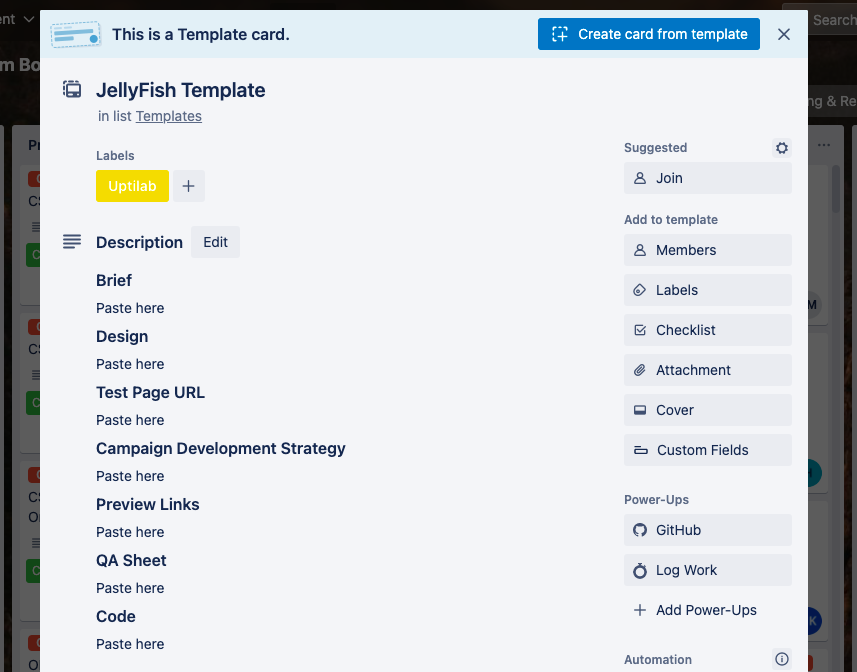
What’s inside a Template?
So inside every card there is a description, and inside these template we have a certain format that we follow in that description while we start working on that particular team task. For example in the Jellyfish template we have the brief, description, preview links, QA sheet space and many more. These provide us a list of all the things we need to fill in the description of the campaign when creating a card, before passing it to someone else.
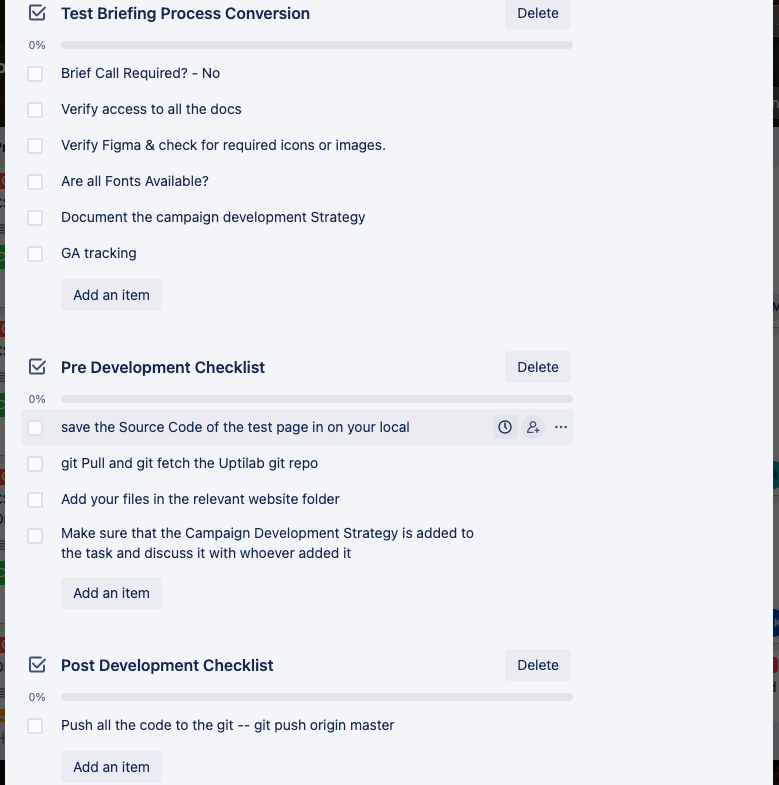
Major difference in the templates are the checklists added inside them. These checklists contain all the pre and post development steps that we need to follow while working on a particular campaign. For new employees, following the checklist when working on the campaign will help you remember all the steps. Make sure you check all the steps as and when needed. This way, other people in the team can also get an idea of your progress with the campaign.
Card Naming Convention
Cards either represent a task to be done or a campaign. General tasks card names should be brief as needed, and these cards can simply be archived when completed.
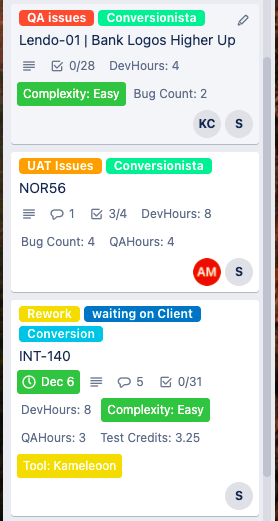
Campaign cards on the other hand should be preceeded with the campaign ID and followed by the campaign name if any. It should look something like this:
<campaign_ID> | <campaign_name>
Few examples can be seen in the image below:
Labels
Labels provide us clarity and extra information on a campaign at glance. Rather than finding out what’s the status of a campaign by opening the card, or worse, by asking the person assigned, we can simply just look at the card and see if it has a “development”, “testing” or “tool setup” label on it. Read more about labels and how they help in organizing tasks generally. Here are all the custom labels we use here at OptiPhoenix:
| Feasibility check | Developers check if it is possible to do the required changes with the available resources or not |
| Briefing | Require a briefing for the campaign |
| Estimation | Need to calculate the development and testing effort in hours provide a delivery date accordingly |
| Awaiting client approval | Waiting for client's approval before starting work on campaign |
| Design | Working on campaign designs |
| Awaiting assets | When we don’t have all the assets available to develop a campaign |
| Waiting for client | Waiting for client for some resources, access, translations, etc or answer a query before we can proceed further with the campaign |
| Development | Campaign is currently being developed |
| Goals | Working on goals/tracking of campign |
| Tool Setup | Setting up the campaign in the tool |
| DEV-testing | When developer needs to do unit testing before passing to QA |
| QA Briefing required | QA requires briefing of the campaign before starting QA |
| QA Testing | Currently testing the campaign |
| QA issues | Campaign has issues raised that need to be looked into |
| Retesting | Reverifying fixed issuess and testing for any news issues |
| Tested | Campaign tested and ready to deliver |
| Ready for demo | Campaign is ready for demonstration for client |
| Awaiting Client Feedback | Waiting for feedback from client after delivering the campaign |
| UAT Issues | Issues raised by client that need to be looked into |
| Rework | When we have a new requirement that was not part of original briefing and estimation |
| Ready for live | Campaign is ready to go live |
| On Hold | Work on campaign has been put on hold by client until further notice |
| Urgent | Campaign is on high priority |
| Single access tools | Card that has an id and password that are shared among the team members |
| Code maintenance task | Improve some old code |
Custom Fields
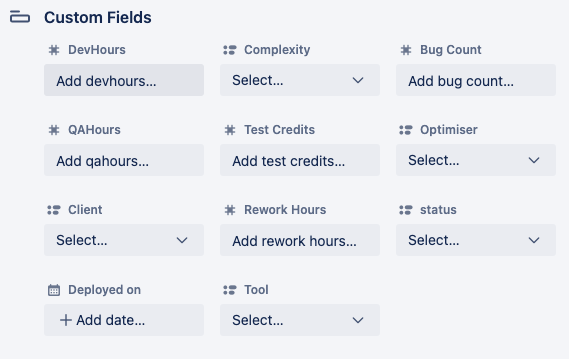
Similar to Labels, we have added custom fields in our cards that can be filled in to provide quick information without opening the cards. Let’s discuss the main types of custom fields you’ll need to use here at OptiPhoenix:
Dev Hours
Once a campaign feasibility has been checked by the developer, they provide us an estimate of the effort required in number of hours to build the campaign. This development estimated is added as Dev Hours in the card and communicated to the client accordingly. Make sure to include some buffer time for unforeseen issues. If the final effort comes out to be different than the estimated effort, it can taken up to the client.
QA Hours
Similar to Dev Hours, this is the estimate provided by the QA in number of hours to test the whole campaign. Make sure the testing includes enough time for responsive testing, cross-browser testing, different language testing, multiple rounds of tesing, etc if required.
Complexity
Complexity is a simple dropdown that tell us if the campaign is easy, medium or complex. This would help the team lead in availing appropriate resources for the campaign. This should be filled by the developer together with the dev hours.
Bug Count
After every round of internal QA, the tester should count all the number of bugs found and update this custom field. This includes all the bugs found during the whole QA, and not just the ones found in the latest round of testing. This field helps get an idea of how many total bugs were found in a developer’s campaign.
Rework Hours
If a requirement was not part of the original briefing, it is considered as rework. If using the same card for the rework requirement, add the effort required for this rework in the Rework Hours field.
Members
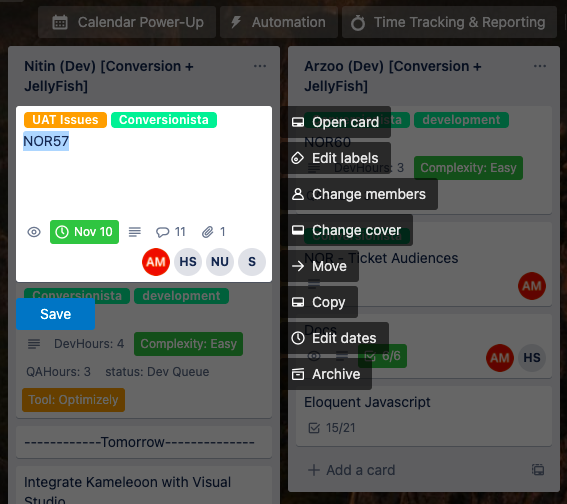
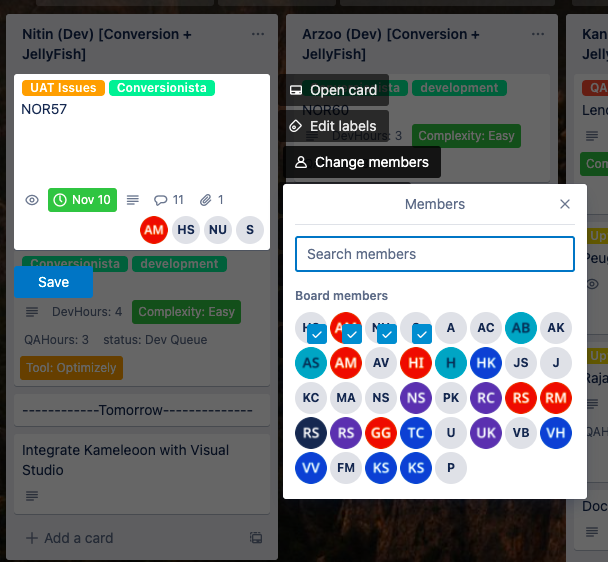
Members on a card are the people the card is assigned to. Whenever we create a card we need to add members to it. The standard practice includes assigning the card to the person who is going to tackle the task including the QA, CRO and the Developer. You can simply right click on the card and a popup list will appear which includes change members, edit list, change cover, copy, move etc. Now click on change member and it will open a member list from where you can add the members into the card. This is a good practice to always add the members who are working on the task so that they will be notified every time there is any update or movement on that particular task. Another significant use is that in case anyone wants to know who has worked on that particular task they can simply know it by seeing the members that have been added. This is very useful in case there is a continuation of any previous task or if a client comes up with any issues after that campaign has been passed, and the card is supposed to be assigned back to the person who initially worked on it.
When to Move a card?
As seen above after right clicking on a card, we saw a button to move the card to another list/queue. We can also simply drag and drop it in another queue as well. We move a campaign to a person’s list if they are supposed to be the next person to work on that campaign.
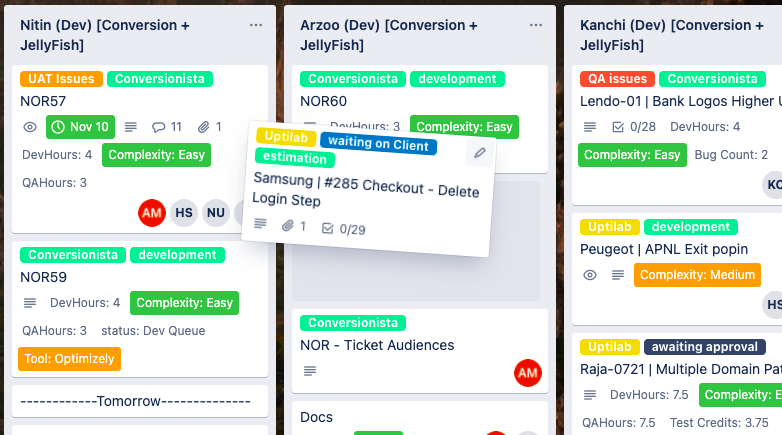
It’s always best to move a campaign to the second or third position in a person’s list and not to the first or last place as putting it in first place can visually disturb the assignee’s priorities, and if we move it to the last place, it might not be visible without scrolling when there are multiple campaigns in the list and the user might fail to notice the task.
As you remember from our flow, a card is created and moved to the developer’s queue whenever a campaign comes up. The developer, after finishing the development, moves the card to QA for testing purposes. The QA tests the campaign once the card is moved into their queue and passes it back to developer in case of any issues. If there are no issues or once the issues are resolved and verified the QA moves the card to Awaiting Client Feedback queue.
Copy the cards
Similar to Move, there is also an option to copy an already existing card. It is mostly useful when we want to reuse an existing card for another campaign, or for copying a card with its existing comments and checklists from a different Trello board.
It follows mostly the same steps as creating a new card using a template.
Date
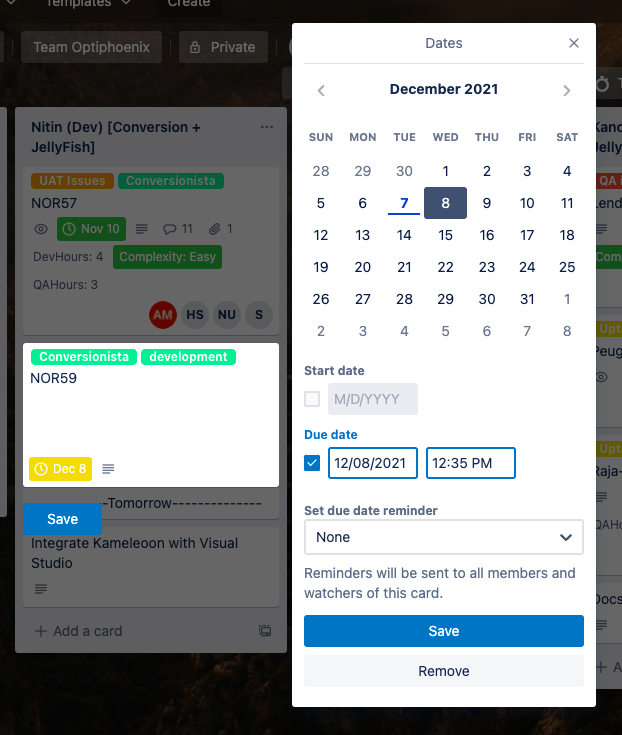
Once the effort has been estimated and the campaign is approved, a deadline for a card is calculated with the team lead and this date can be added to the card by right clicking on it and then clicking on “Edit date”. This is a good practice as just like labels, it provides information of when the campaign is due on quick glance outside of the card. The colors green, orange, red, etc will let us know what’s the status of the campaign in regards to the deadline. The date should be marked done once the campaign is done and delivered.
Single Access Tools
Single Access Tool is a list placed at the end of the OptiPhoenix Trello board. It contains all the credentials of tools that can only be used by one person at a time. Only the person who has moved the card to the top of their list should use it. This will inform other team members that the current account is occupied and they should either wait or use another account. All cards in this list have a label of “Single Access Tool” on them and the credentials can be found inside the card description.

If a card is in another person’s list, please refrain from using those credentials as it can disrupt their usage. Only use the credentials after moving it from the Single Access Tools list to the top of your list, and remember to move the card back once you’re done.
Search
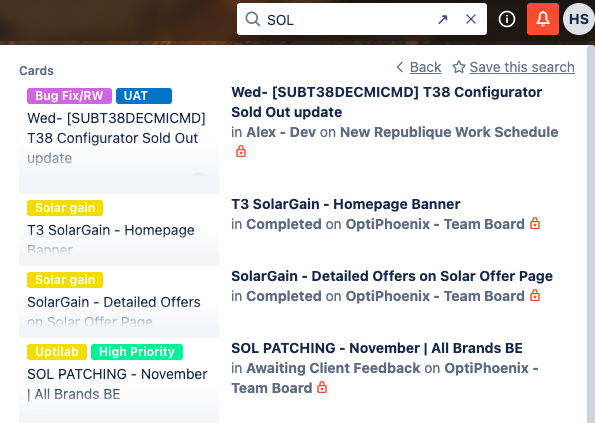
We might need to search for a campaign in the Trello board and it can be done using the Search input on the top. However, it doesn’t just search through that one board, or one workspace but through all the boards you might have access of. This can be quite confusing as the search result might contain cards with similar names mixed with each other.
Search Operators
To prevent confusion and get the right results, Trello provides us some Search operators to refine our search. Search operators help you find specific cards and create highly tailored lists. Trello will suggest operators for you as you type, but here’s a full list to keep in mind. You can add “-” to any operator to do a negative search, such as -has:members to search for cards without any members assigned.
Here are all the operators:
@name
Returns cards assigned to a member. If you start typing @, Trello will suggest members for you. member: also works. @me will include only your cards.
#label
Returns labeled cards. label: also works.
board:id
Returns cards within a specific board. If you start typing board:, Trello will suggest boards for you. You can search by board name, too, such as "board:Trello" to search only cards on boards with Trello in the board name.
list:name
Returns cards within the list named “name”. Or whatever you type besides “name”.
has:attachments
Returns cards with attachments. has:description, has:cover, has:members, and has:stickers also work as you would expect.
due:day
Returns cards due within 24 hours. due:week, due:month, and due:overdue also work as expected. You can search for a specific day range. For example, adding due:14 to search will include cards due in the next 14 days.
created:day
Returns cards created in the last 24 hours. created:week and created:month also work as expected. You can search for a specific day range. For example, adding created:14 to the search will include cards created in the last 14 days.
edited:day
Returns cards edited in the last 24 hours. edited:week and edited:month also work as expected. You can search for a specific day range. For example, adding edited:21 to the search will include cards edited in the last 21 days.
description:, checklist:, comment:, and name:
Returns cards matching the text of card descriptions, checklists, comments, or names. For example, comment:"FIX IT" will return cards with “FIX IT” in a comment.
is:open and is:archived
Returns cards that are either open or archived. Trello returns both types by default.
is:starred
Only include cards on starred boards.
sort:created
Sorts cards by date created. sort:edited and sort:due also work as expected.