Debugging Optimizely experiments—especially on complex SPAs—can be time-consuming and error-prone. Questions like “Am I bucketed?”, “Is the experiment even running?”, or “Why does it work in preview but not live?” come up daily for experimentation teams.
Optimizely Assistant, a Chrome extension built by Optimizely, is designed to answer these questions instantly—without digging through network logs or source code.
This article explains what Optimizely Assistant is, how it works, and how to use it effectively in real-world debugging.
What Is Optimizely Assistant?
Optimizely Assistant is a Chrome browser extension that provides real-time visibility into Optimizely Web experiments running on a page.
It helps you:
- See which experiments are active
- Identify which variation a user is bucketed into
- Verify page targeting and activation
- Debug issues without opening DevTools every time
Think of it as a live inspector for Optimizely experiments.
Why Optimizely Debugging Is Hard Without It
Without Optimizely Assistant, debugging usually involves:
- Checking window.optimizely manually
- Inspecting network requests
- Guessing whether page conditions passed
- Comparing Preview vs Live behavior
- Asking teammates “Is it working for you?”
On SPAs, this gets worse due to:
- No page reloads
- Delayed DOM rendering
- Route-based activation
- Duplicate or missing impressions
Optimizely Assistant reduces this friction significantly.
Key Features of Optimizely Assistant
1. Experiment & Variation Visibility
The extension shows:
- Active experiments on the page
- Experiment IDs and names
- The exact variation the user is in
This instantly answers: “Am I actually in the test?”
2. Page Targeting Status
For each experiment, you can see:
- Whether page conditions passed
- Whether the experiment was activated
- Why a test may not be running
This is extremely useful when:
- URL targeting looks correct but the test doesn’t fire
- SPA routes don’t activate as expected
3. Bucketing & Audience Debugging
Optimizely Assistant reveals:
- Audience qualification
- Bucketing status
- Whether traffic allocation includes you
This helps debug issues like:
- “Works for others but not me”
- Audience conditions blocking entry
- QA users not qualifying
How to Use Optimizely Assistant in Daily Debugging
Step 1: Install & Open the Extension
- Install from Chrome Web Store
- Open it on the page where Optimizely runs
- If Optimizely is detected, the extension activates automatically.
Step 2: Verify Experiment Activation
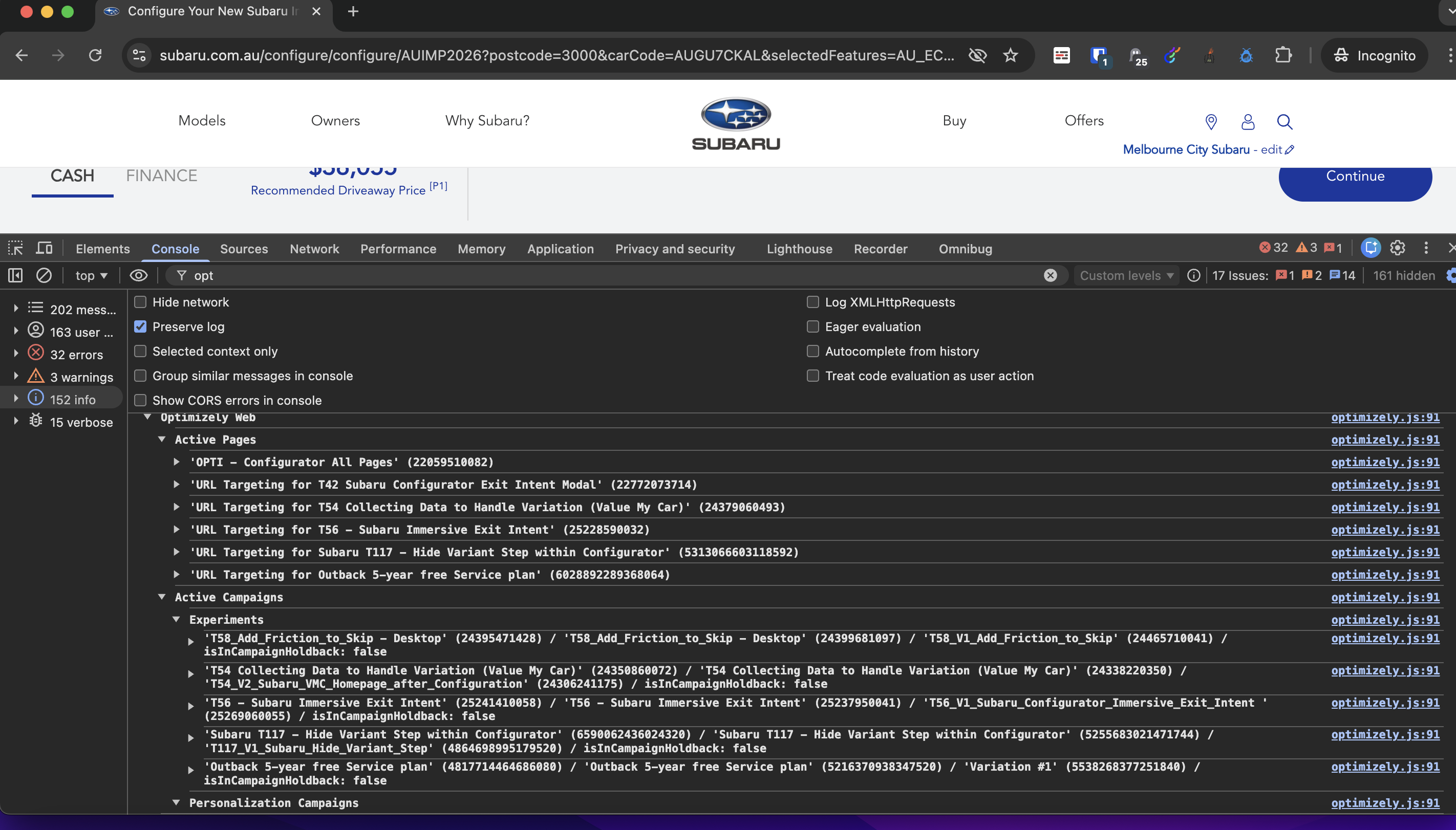
Check:
- Is the experiment listed?
- Is it “Activated” or “Not Activated”?
- Which variation is applied?
If not activated:
- Page targeting likely failed
- Audience conditions may not be met
- SPA trigger didn’t fire
Step 3: Debug SPA Issues
After route navigation:
- Open Optimizely Assistant again
- Check if the experiment re-evaluated
- Confirm activation timing
If the test appears only after refresh → SPA routing is the issue.
Step 4: Validate Before Checking Network Logs
Best practice:
- Check Optimizely Assistant first
- If needed, then inspect network logs
- Finally, debug code-level issues
This saves time and avoids unnecessary deep dives.
Step 5: Viewing Events & Metric Triggers via Console (Using Optimizely Assistant)
Optimizely Assistant also helps validate event and metric triggers through the browser console, which is useful during QA.
When the extension is active:
- User interactions (clicks, submits, views) may log Optimizely-related messages in the Console
- This helps confirm that a custom event or interaction has actually fired

Why this helps:
- “Did the event actually fire?”
- “Did Optimizely register this interaction?”
- “Is the metric wired correctly?”
Console visibility confirms event execution
What Optimizely Assistant Does Not Do
Important limitations to understand:
- ❌ Does not show raw network payloads
- ❌ Does not replace browser DevTools
- ❌ Does not validate backend conversions
- ❌ Cannot fix bad targeting or timing logic
It’s a visibility tool, not a magic fix.
Common Scenarios Where Optimizely Assistant Shines
- Experiment not running on SPA routes
- Preview works, live doesn’t
- Unsure which variation you’re in
- Audience conditions blocking QA
- Duplicate experiments suspected
In most of these cases, Optimizely Assistant gives answers in seconds.
Best Practices When Using Optimizely Assistant
- Always combine with Network tab for final validation
- Use it early during QA—not after launch
- Don’t assume “Activated” means “Measured correctly”
- Use execution guards in code even if Assistant looks fine
Final Thoughts
Optimizely Assistant doesn’t replace technical debugging, it dramatically reduces:
- Guesswork
- QA time
- Miscommunication between teams
If you work with Optimizely—especially on SPAs—this extension should be part of your default debugging toolkit.