Overview
Campaigns are built to test how a user might react to change, and how much they like this experience compared to the control. Goals or metrics provide us the analytical data from AB Testing that helps us figure out if a campaign was succesful or not. Hence, they are the most crucial part of AB Testing and need special attention to verify before we deliver a campaign.
How to test Goals?
The goals need to be tracked are specified by the strategist in the brief. Different tools may have different ways to test the goals. Let’s take a look at the different methods:
1) Test Optimizely goals
Optimizely is a CRO tool and goals added to this tool can be tested using a chrome extension provided by Conversion. Here’s what you need to do:
- Download the extension.
-
Open the preview link and the extension must be highlighted in blue.
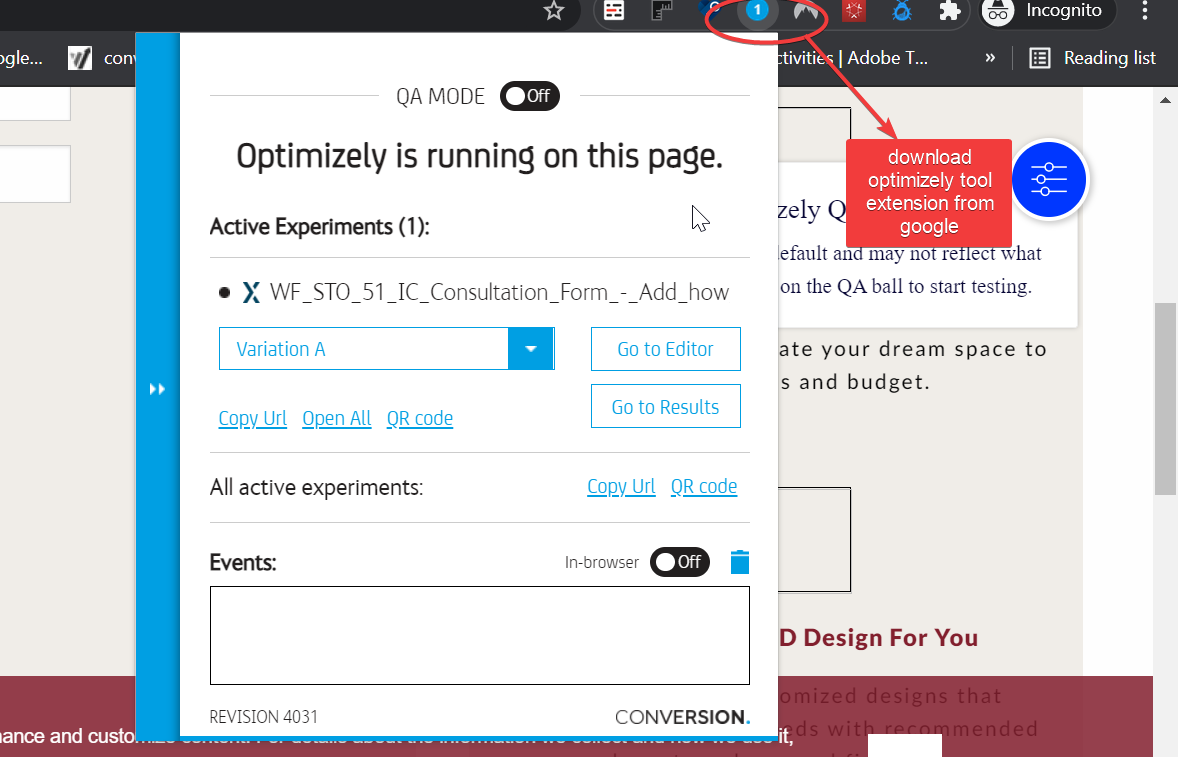
- Click the optimizely extension and a pop-up showing all variations in dropdown . You can select any variation or Control from that drop down.
-
Click on the in-browser option under Events.
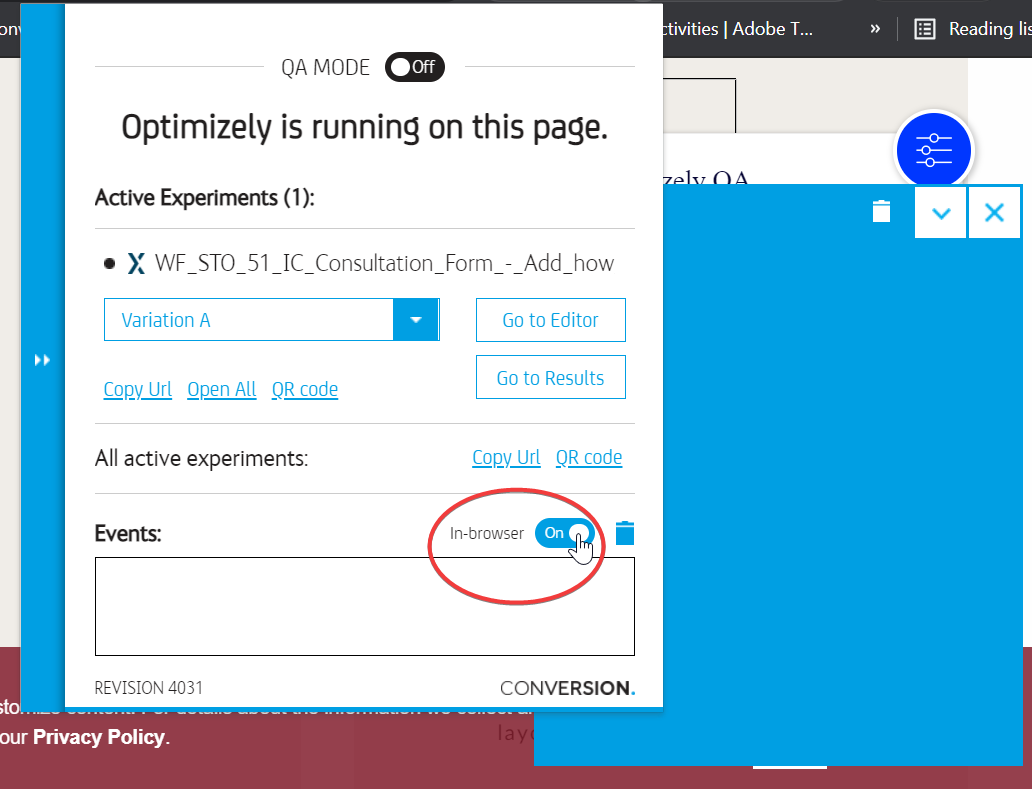
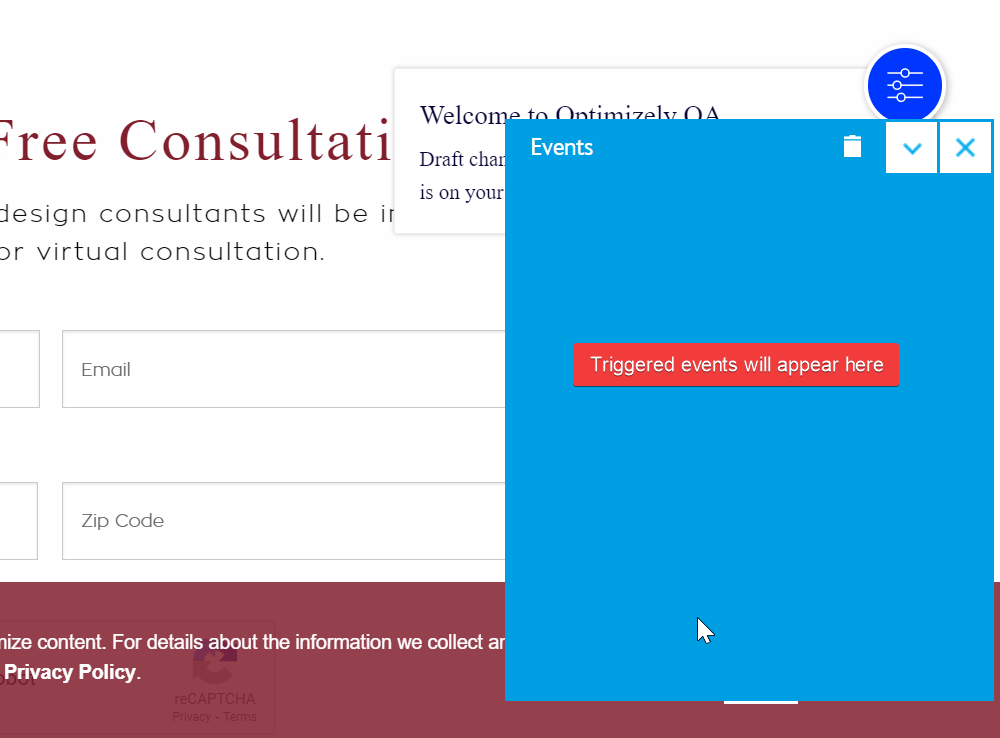
- A blue floating window will appear on the experiment page.
- All the events triggered can be checked from there.
2) Test CONVERT goals
Convert is another CRO tool used here at OptiPhoenix. Unlike Optimizely, it doesn’t have an extension to test the goals. Here’s how you can verify them:
-
Open the experiment in Convert tool.
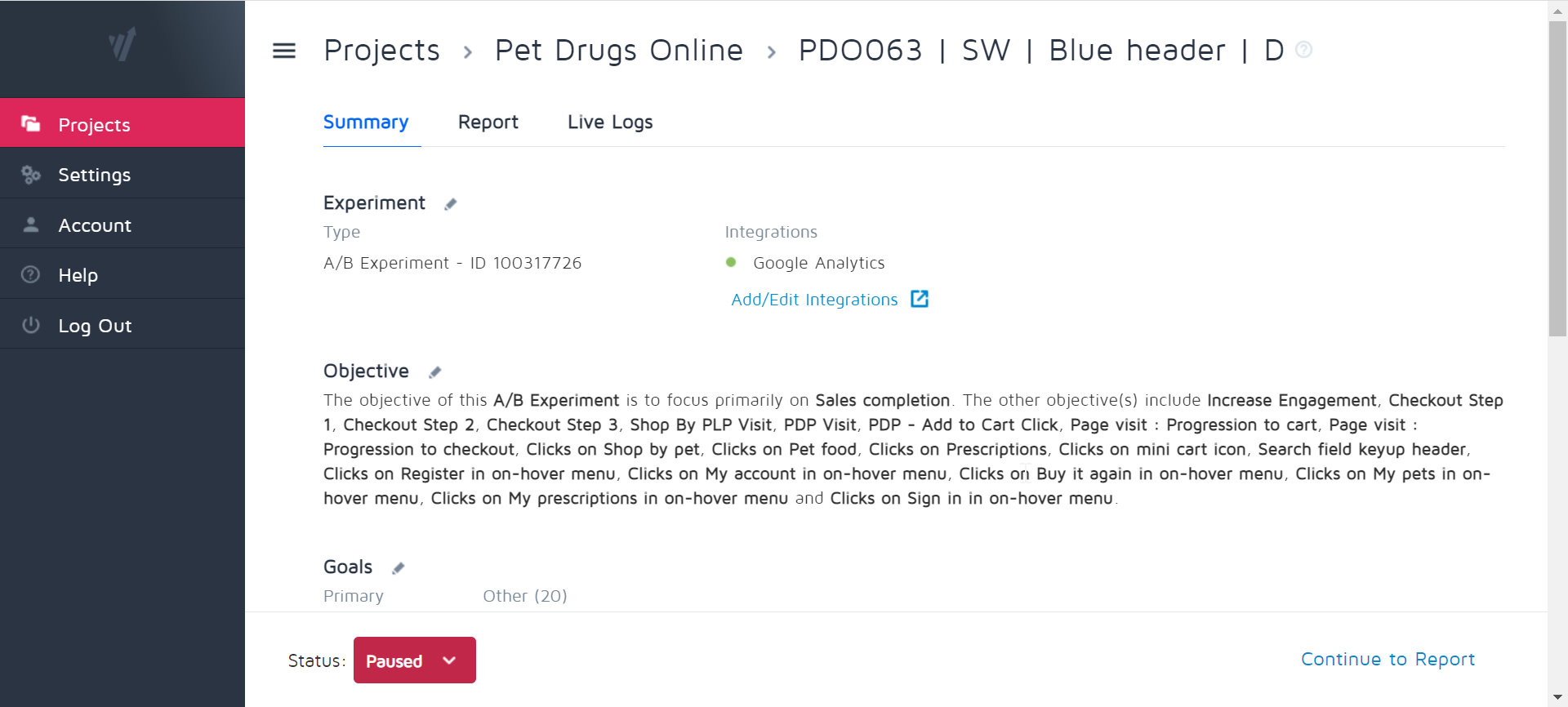
- Make sure the experiment is Paused and all the GOALS are added in the Goals section.
-
Edit the Audience and add QA cookie from Saved Audience. ( Please consult developer before adding cookie )
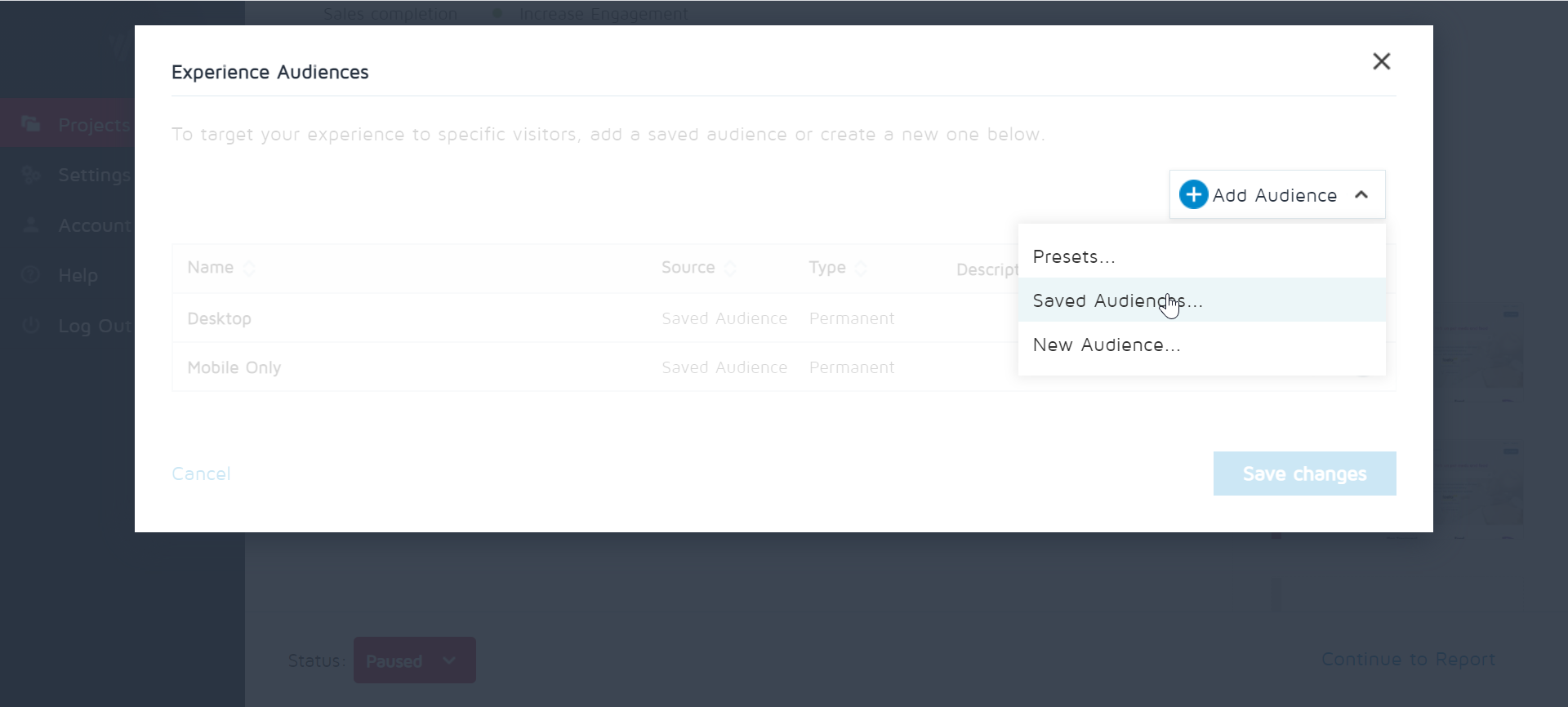
-
Make sure only QA cookie is added . ( Otherwise campaign will become live for every audience )
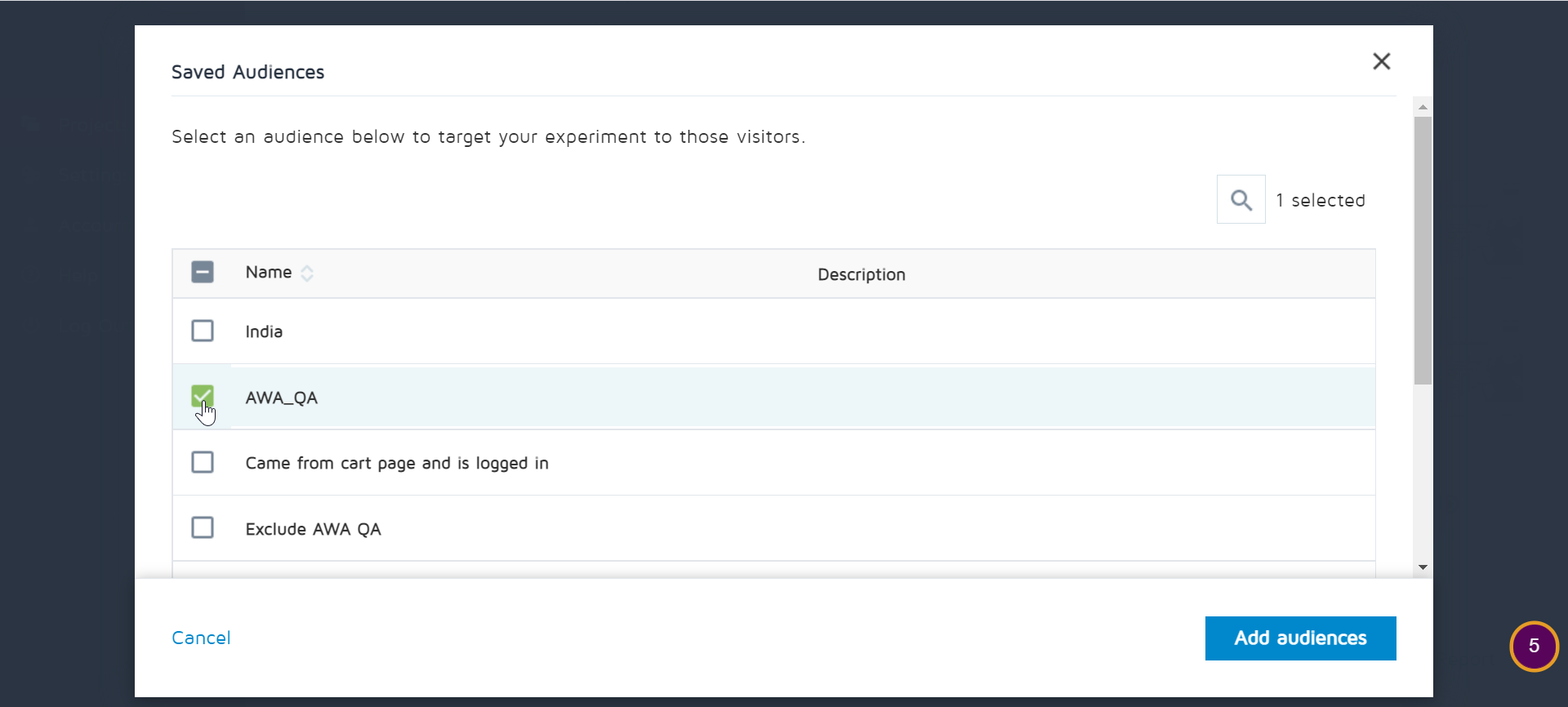
-
Save Changes and Make the status Active. This will make the campaign live. ( Please inform the dev & PM , before doing so )
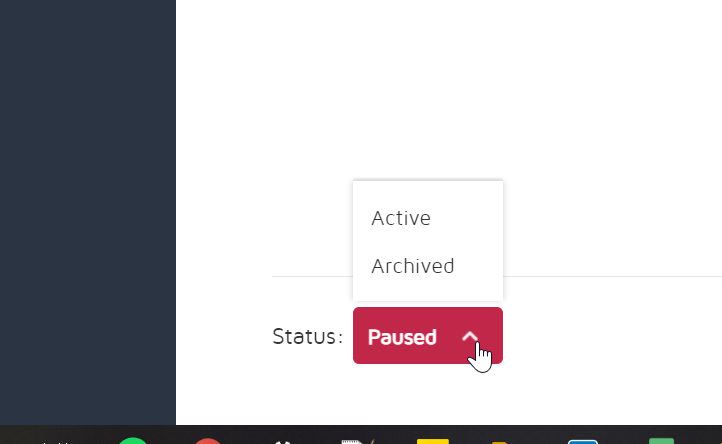
- Now open the test URL in the browser and then in console add the cookie -
document.cookie="AWA_QA=true"; - Now trigger the goals on the test URL.
- Verify if the goals are working - Go to the “Report” section in Convert and check if the data corresponding to the goal selected is coming.
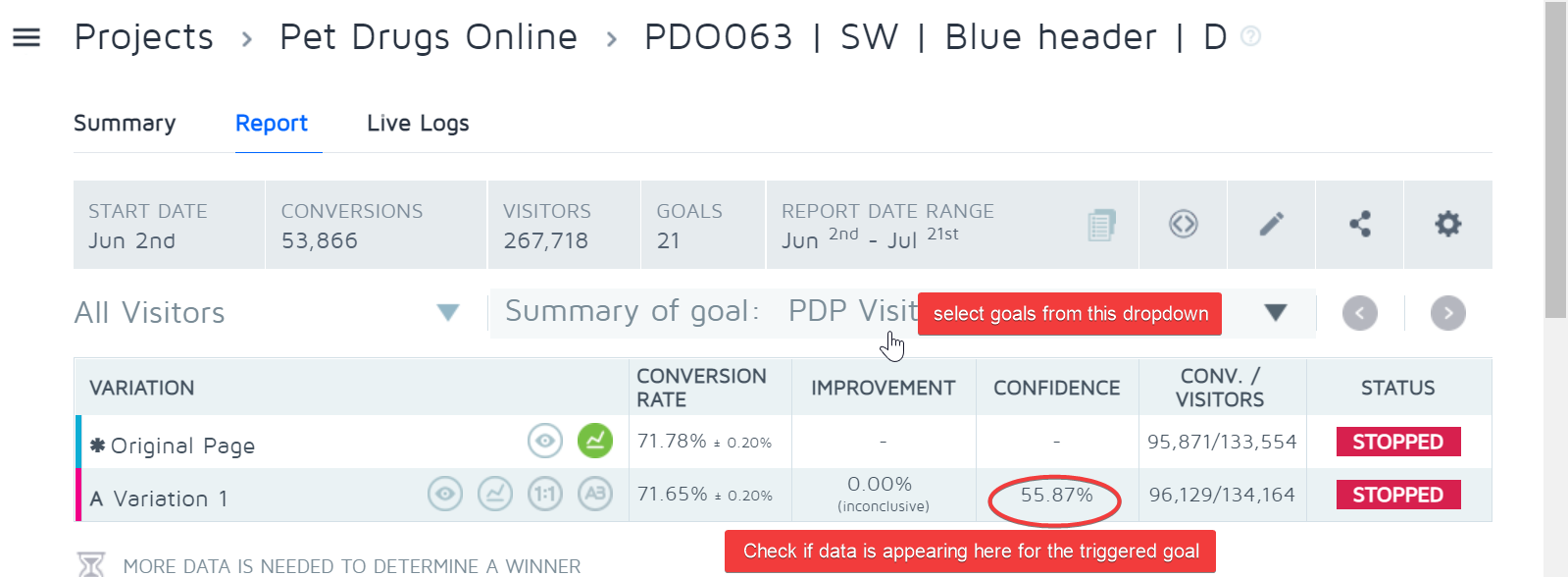
3) Test GA goals
Most sites have some kind of a google analytics integration and you might need to test if the events are being triggered correctly or not. Here’s how you can do that:
- Download and install the Omnibug chrome extension.
- Go to test page URL.
- Open dev tools.
-
Click the Omnibug tab at the end.
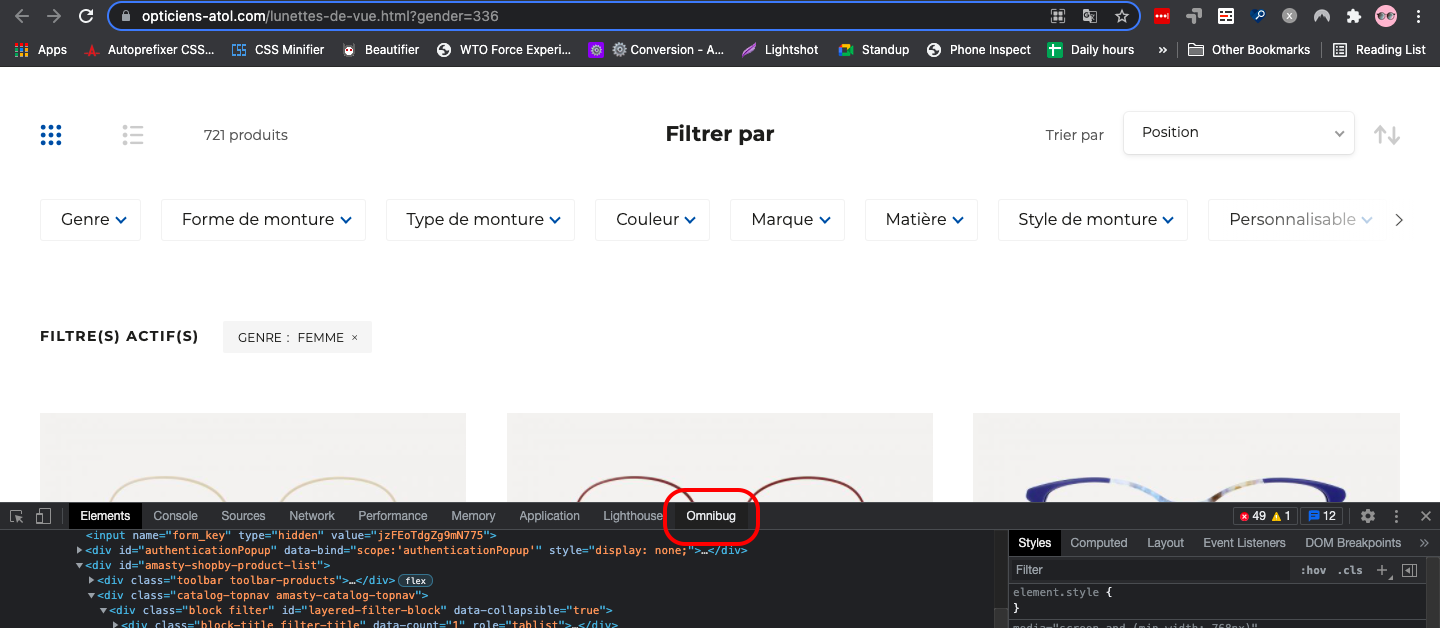
- Trigger the event you need to verify. For example, add a product to cart.
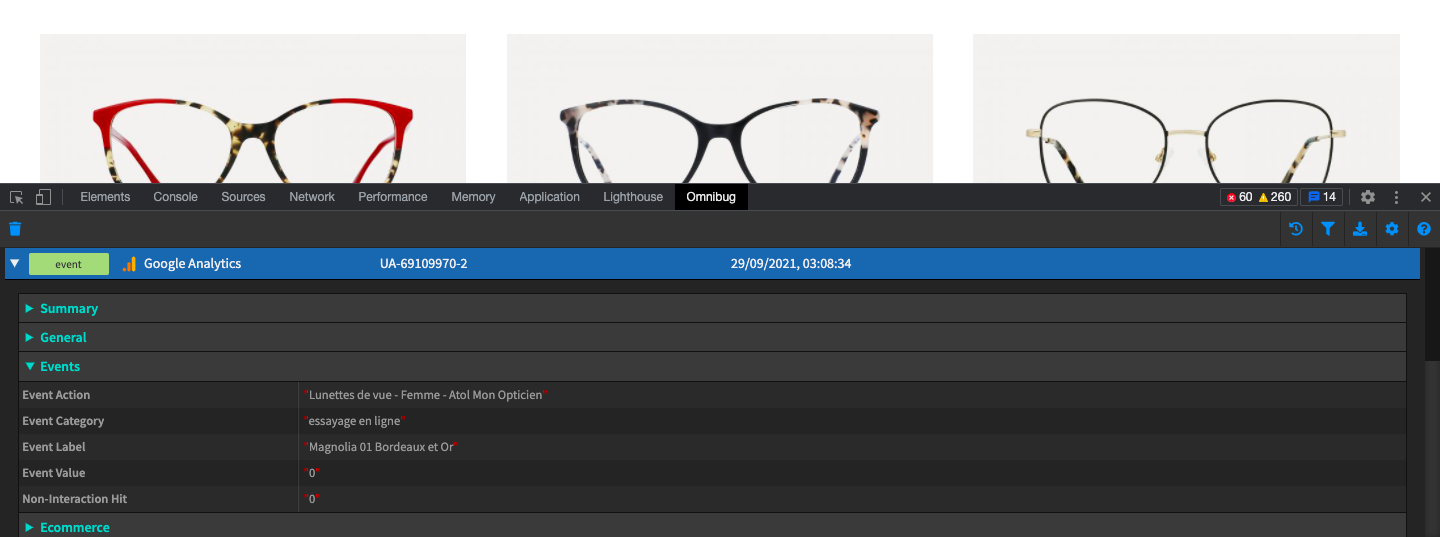
- You’ll see a GA event tracked in Omnibug. You can read the category, action, and label under the events tab and verify them as per the brief.
4) Test Adobe Target goals
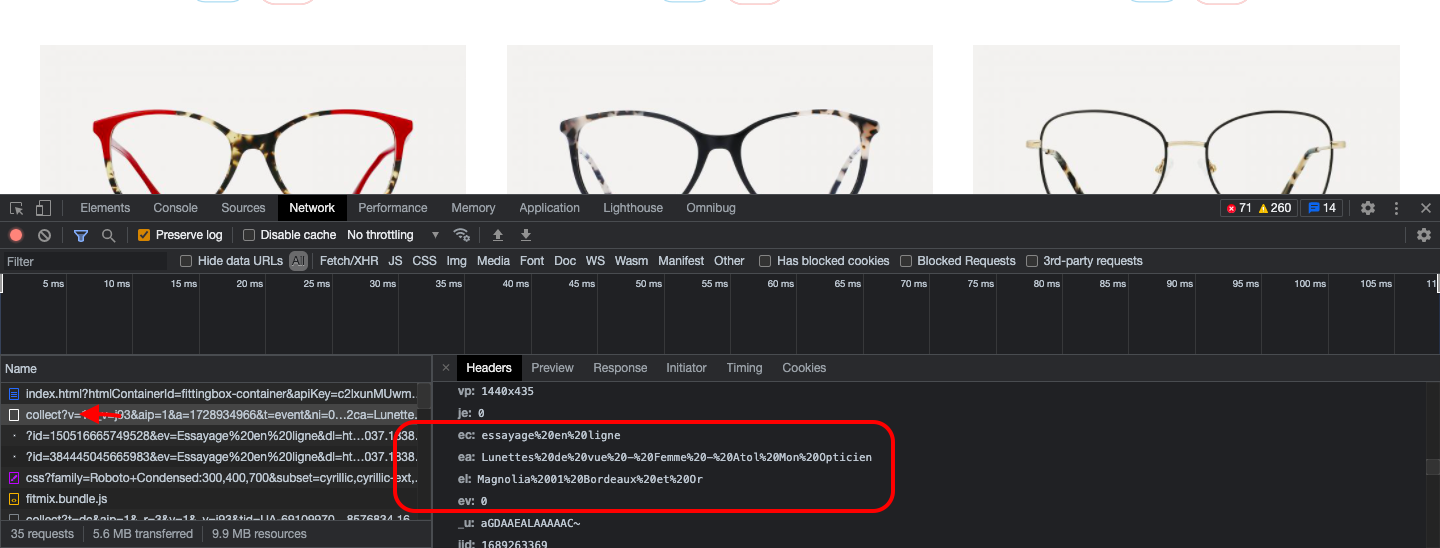
Adobe Target goals can be verified the same way as GA goals using the Omnibug chrome extension or through Network tab in dev tools.