Optimizely code execution flow
The execution starts with optimizely snippet executing on the website and making calls to the optimizely server to get the website campaign details. Let’s take a look at the execution flow explained in the diagram below.

Targeting and Activation
This is used to define the URLs where the experiment will run. A Test can run on a single URL i.e. Home Page http://optiphoenix.com or multiple URLs i.e. SiteWide, on all pages of http://optiphoenix.com.
Optimizely in other terms is a sophisticated cloud server which allows to define the URLs and activation conditions to serve your code.
Let’s say if we are testing two different header navigations on the website, then the experiment will be targeted to all the pages where the navigation exists.
Reusability in URL targeting
Optimizely allows you to create reusable URL targeting and activation templates called pages to reuse in multiple experiments. e.g. If we plan to test on home page of https://abtest.optiphoenix.com, then we can create a page in Optimizely and define the URL settings of the home page. Once this page is created in Optimizely project, it can be reused on multiple different experiment which we plan to run on homepage. Pages can be created while setting up the targeting in a campaign or by using the Implementation tab.
Defining page settings
Conditions and tiggers can be added in the page settings to exactly define the URLs on which experiment will run and when it will be activated. For example: If you wish to run an experiment on all product pages only on the page load, then follow the below mentioned step.
- Observe the different product URLs and try to come up with a unique pattern among the URLs. e.g.
https://abc.com/abc-eos-250d-black-18-55mm-f-4-5-6-is-stm-lens-black-backpack-sd-card-spare-battery/3454C023/
https://abc.com/abc-eos-850d-ef-s-18-55mm-is-stm-lens-backpack-sd-card-spare-battery/3925C018/
https://abc.com/abc-speedlite-430ex-iii-rt-flash/0585C011/
Found anything common among in these URLs? Yes, you are right! All of them ends with a 8 letter code starting with 4 numbers, then an alphabet and then 3 numbers.
Here is a regular expression that represents a string ending with a 8 letter code with 4 numbers, an alphabet and 3 numbers:
/[0-9]{4}[A-Z][0-9]{3}/$
Learn more about the regular expressions here
Once you are ready with regex or URLs, add it under the conditions as explained below.
Conditions
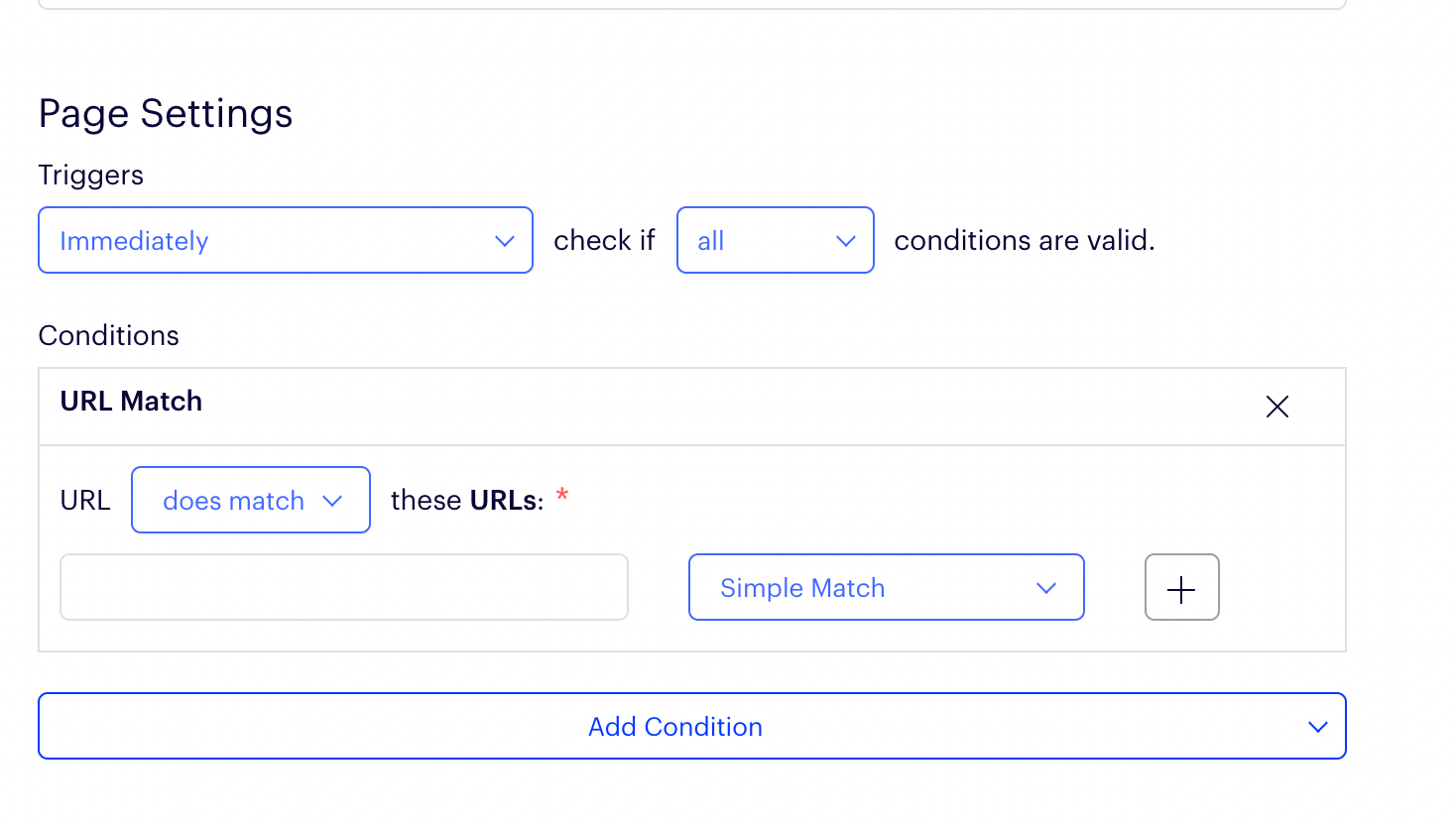
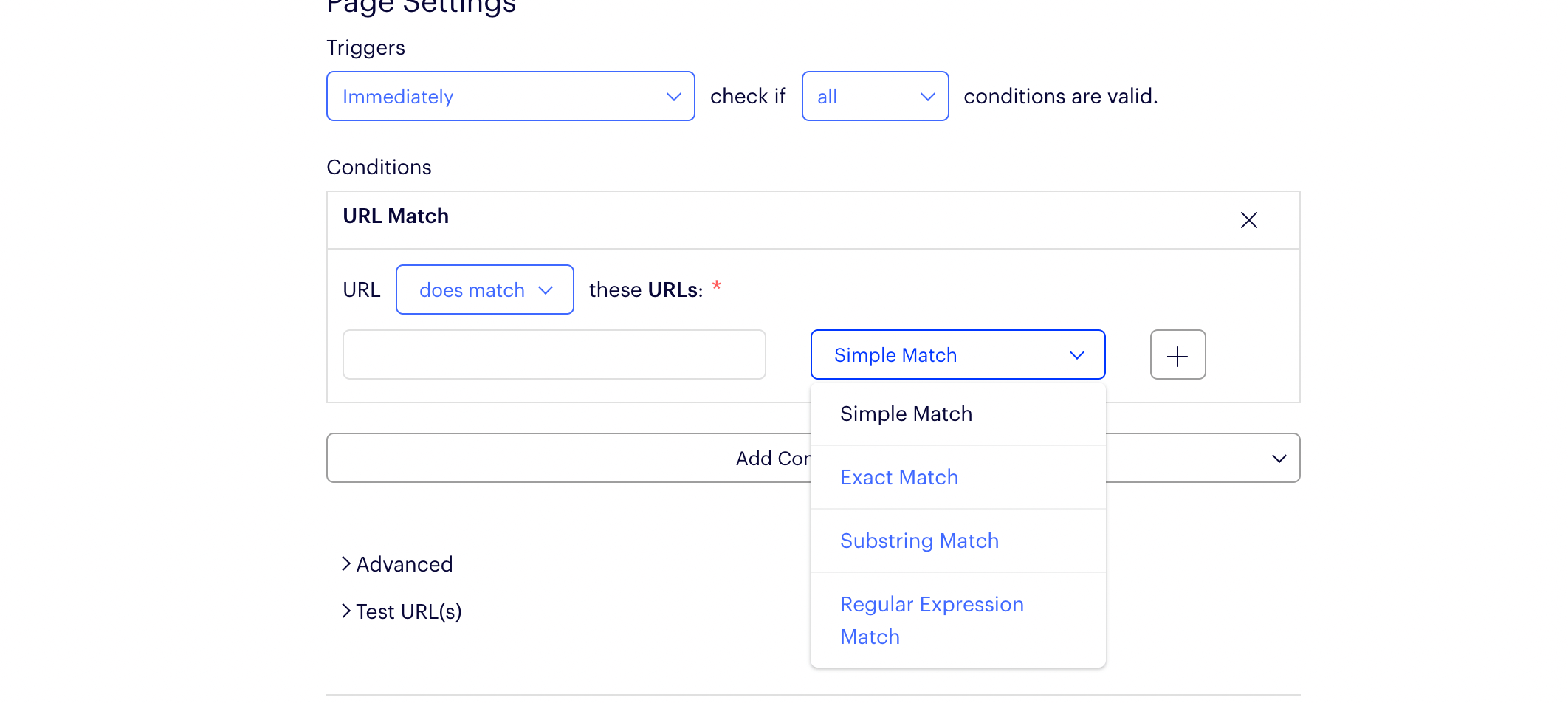
URL Match: Use URL Match Types to define where the experiment should run.
We can use either an exact match, substring match or a regex as an equator to define the URL condition.
Element is present: Add one or more CSS selectors that Optimizely should check for each time the trigger for this page fires. Optimizely uses document.querySelectorAll to determine whether the element exists at the time the page fires.
JavaScript Condition: Add a custom JavaScript function that is evaluated when the trigger for this page fires. The function should return a boolean value.
Triggers
Triggers are used to refine the targeting and activate the experiment exactly when the variation changes should be shown. For example: If we are running an experimenting the Mini Cart Popup which shows up after the product is added to Cart, we will activate the campaign right after Add to Cart is clicked instead of the product page load event.
There are multiple triggers options that help us to achieve this as follows:
- Immediately: This is default activation and it activates the campaign as soon as the page loads and conditions are matched.
- When a callback is called: It allows you to write custom JS to write event listeners or waits or mutationObservers to activate the experiment on a specific event.
- When a JavaScript condition is true: This trigger polls every 50ms to check the condition defined and times out in 2s.
- Manually
Go through this optimizely documentation to understand the activation in a better way.
Build a Variation
Add Goals
Audience and traffic Allocation
QA
Pro tip: While developing insert a debugger statement debugger in the code to pause the execution.